
Download the HireMindPro Desktop App
Get the Windows or macOS desktop app that powers your real-time interview copilot.
The Downloads page (at /downloads) is where you grab the HireMindPro desktop app. The desktop app is what captures your interview audio and screen locally, so the AI interview copilot can listen to the interviewer's questions and generate real-time answer suggestions during live calls (Zoom, Google Meet, Microsoft Teams, Webex, and coding platforms). Every download button always pulls the latest stable build for your machine. The page offers a Windows x64 installer plus macOS builds for Apple Silicon and Intel.
- Who it's for
- Anyone who wants to use the live Interview Copilot (or Mock Interview practice) needs the desktop app, because the browser alone cannot reliably capture meeting audio. If you only use web-based features like Resume Tailor, Auto-Apply, or AI-chat tools, you do not need the desktop app.
- Cost
- No credits. Downloading and installing the desktop app is completely free. Credits (if any) are only consumed by the features you run inside it, not by the download itself.
- Before you start
- A HireMindPro account that is signed in — the /downloads page is gated and will redirect you to /signin if you are not logged in
- A Windows (x64) or macOS (Apple Silicon M1/M2/M3/M4, or Intel) computer
- Roughly 100+ MB of free disk space for the installer (the current Windows build is about 100 MB)
- Administrator rights on your machine to install desktop software
- For the live Interview Copilot: you'll sign into the desktop app with the same account after installing
Open the Downloads page
- Sign in to your HireMindPro account.
- Click "Downloads" in the top navigation bar (it's also linked in the site footer), or go directly to /downloads.
- If you aren't logged in, you'll be sent to /signin first; after signing in you'll land back on the Downloads page automatically.
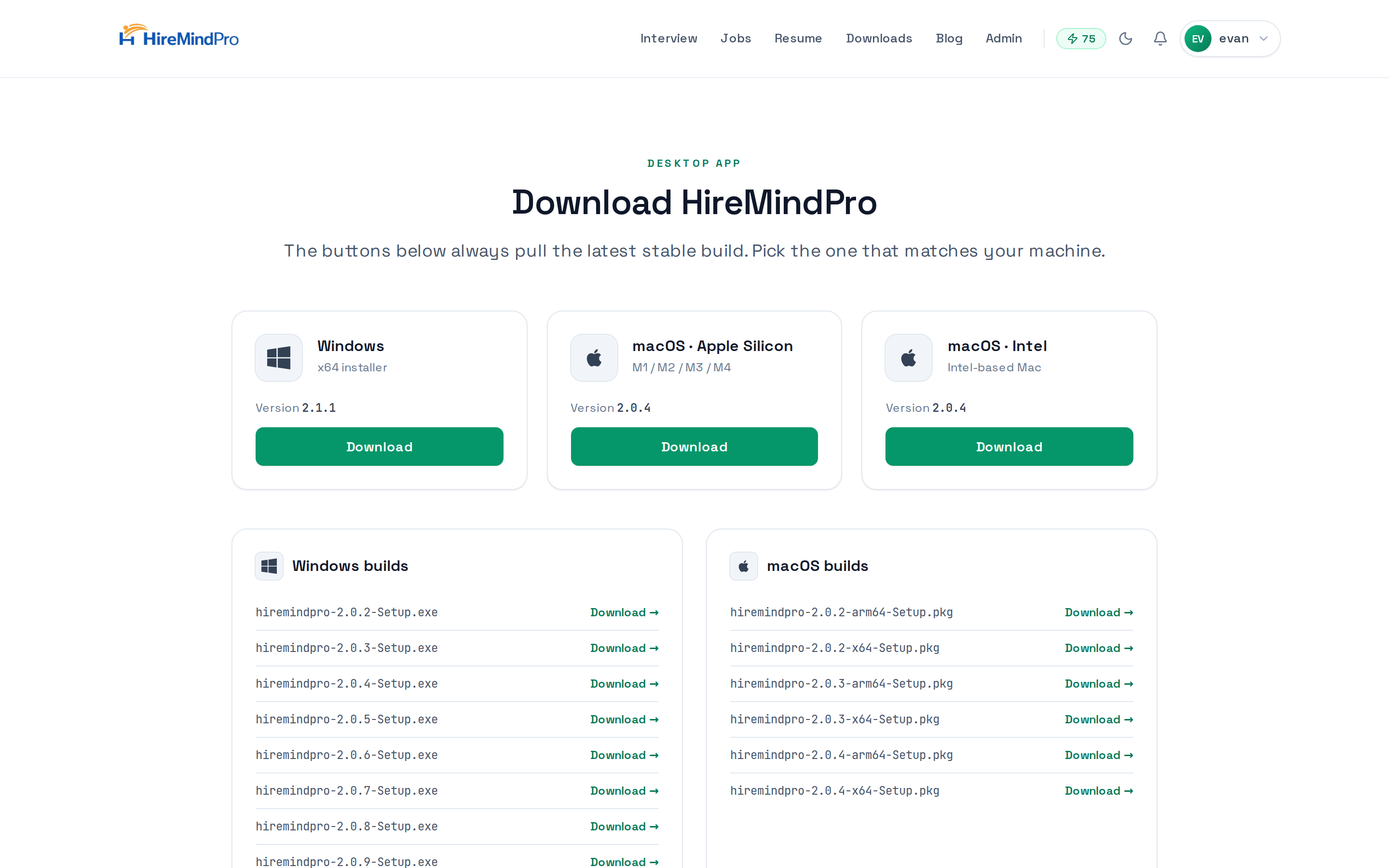
- You'll see the header "Download HireMindPro" with the note that the buttons always pull the latest stable build.
Pick the build that matches your computer
- Under the cards row, choose the card that matches your machine: "Windows" (x64 installer), "macOS · Apple Silicon" (M1 / M2 / M3 / M4), or "macOS · Intel" (Intel-based Mac).
- Each card shows the current Version number above its Download button so you can confirm you're getting the latest release.
- Click the blue "Download" button on your platform's card to start the download.
- If a card shows "No files found," that platform's build isn't published yet — use the matching build from the lists below, or check back later.
Browse all available builds (optional)
- Below the platform cards are two lists: "Windows builds" and "macOS builds."
- Each list shows every published installer file by name (for example, hiremindpro-2.0.5-Setup.exe) sorted by version.
- Click "Download →" next to any specific file if you need an exact version rather than just the latest.
- All download links route through the secure /api/downloads endpoint, which serves the verified, unmodified installer.
Install on Windows
- Open the downloaded file (e.g. hiremindpro-2.0.5-Setup.exe) from your browser's downloads bar or your Downloads folder.
- If Windows SmartScreen shows a warning, click "More info" and then "Run anyway" to proceed.
- Follow the installer prompts to finish setup.
- Launch HireMindPro from the Start menu and sign in with the same account email you use on the website.
Install on macOS
- Open the downloaded installer (.pkg, .dmg, or .zip depending on the build) from your Downloads folder.
- For a .dmg, drag the HireMindPro app into your Applications folder; for a .pkg, follow the guided installer steps.
- On first launch, if macOS blocks the app, go to System Settings > Privacy & Security and click "Open Anyway," then confirm.
- Open HireMindPro and sign in with the same account you use on the website.
Connect the app to your interview copilot
- With the desktop app installed and signed in, start a session from the website's Interview Copilot (or Mock Interview) flow.
- The desktop app captures the meeting audio locally and streams it to the copilot so you get real-time, on-screen answer suggestions during your live call.
- Keep the desktop app running in the background throughout your interview.
Tips & good to know
- The Download buttons always serve the newest stable version automatically — you don't have to hunt for the latest version number.
- The desktop app has a built-in auto-updater, so once installed it can keep itself current without re-visiting the Downloads page.
- Apple Silicon and Intel are separate builds — installing the wrong one can cause poor performance, so match your Mac's chip exactly.
- Installer downloads are served with integrity hashes (SHA-256), so the file you get is the exact, untampered build.
- If your browser blocks the download, make sure you're still signed in — an expired session can cause the download link to fail.
- You don't need the desktop app for web-only features (Resume Tailor, Auto-Apply, AI chat). It's specifically for live audio/screen capture in the Interview Copilot.
FAQ
Do I have to pay or spend credits to download the app?
No. The desktop app download and installation are free. You only spend credits (where applicable) on the AI features you run inside it.
Why does the Downloads page ask me to sign in?
The /downloads page and the installer files are gated behind login, so you need an active HireMindPro session. If you're signed out you'll be redirected to /signin and returned to the page afterward.
Which version do I get when I click Download?
The button always pulls the latest stable build for your platform. Each card also shows the exact version number, and you can pick an older specific version from the build lists lower on the page.
How do I know whether to choose Apple Silicon or Intel on Mac?
Click the Apple menu > About This Mac. If it shows an Apple M1/M2/M3/M4 chip, choose Apple Silicon; if it shows an Intel processor, choose Intel.
What is the desktop app actually for?
It powers the real-time Interview Copilot by capturing your meeting audio and screen locally, letting the AI hear the interviewer's questions and suggest answers live. Web-only features don't require it.
Will the app update itself?
Yes. The desktop app includes an auto-updater that fetches the latest build, so you generally won't need to revisit the Downloads page after the first install.
Ready to try it yourself?
Open Downloads →