
Getting Started with HireMindPro
Create your account, verify your email, claim your 5 free credits, and find your way around.
HireMindPro is an AI-powered job-search and interview toolkit. It combines a real-time interview assistant (the desktop Interview Copilot with stealth screen-share mode), AI resume tailoring, mock interviews, a curated job board with one-click auto-apply, an application tracker, and voice cloning for realistic practice. This guide walks a brand-new user through signing up, verifying their email, signing in (including with Google), and where to go first.
- Who it's for
- Anyone preparing for job interviews or running an active job search who wants AI help drafting resumes, practicing answers, applying to roles, and getting live support during real interviews. It's the first thing every new user should read before using any other feature.
- Cost
- Free to sign up. New accounts receive a one-time welcome bonus of 5 credits. Most features are free for users on a paid subscription tier (resume tailoring, cover letters, mock interviews). Credits are only consumed by two features: Auto-apply (0.1 credits per application) and Voice clone training (10 credits per job). 1 credit = $1 USD.
- Before you start
- A valid email address you can receive a verification code at
- A username and a password (at least 8 characters, containing both letters and digits)
- Nothing to pay up front — signing up is free and includes welcome credits
- For the live Interview Copilot specifically: the Windows or macOS desktop app from the Downloads page (the web app covers everything else)
1
Create your account
- Go to the site and click Sign up in the top-right of the navigation bar (or visit /signup directly).
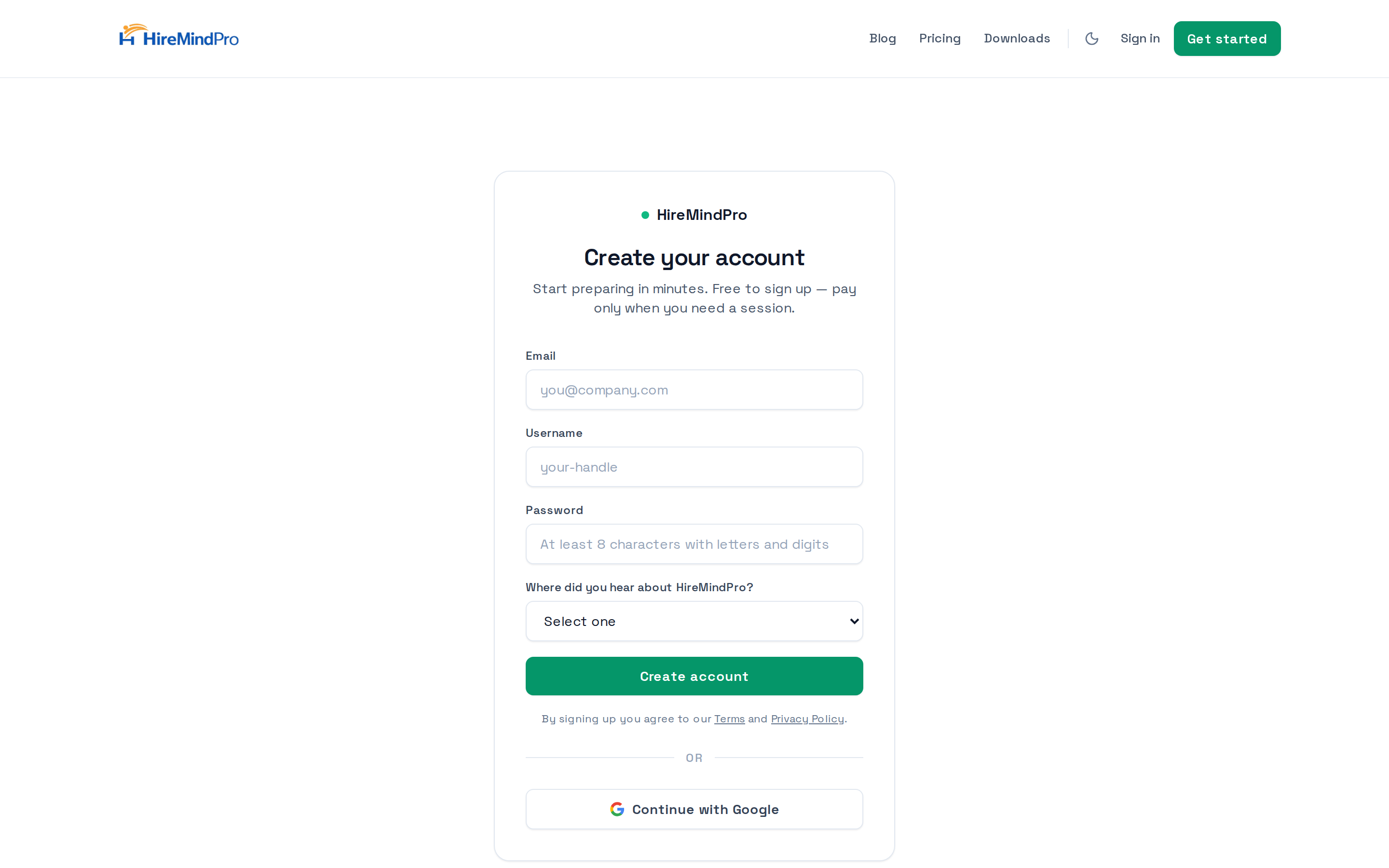
- On the Create your account page, enter your Email, choose a Username, and set a Password. The password must be at least 8 characters and include both letters and digits.
- From the Where did you hear about HireMindPro? dropdown, select one option (Instagram, LinkedIn, YouTube, TikTok, X, Facebook, or Other). If you pick Other, a Please tell us where field appears — fill it in.
- Click Create account. Your 5 welcome credits are granted to the account at this point.
- You'll be taken to the Verify your email page.
Tip: By creating an account you agree to the Terms and Privacy Policy, both linked beneath the button.
2
Sign up with Google (optional)
- If Google sign-up is enabled, a Continue with Google button appears below the form on the Sign up page.
- Before clicking it, you must still select an option in the Where did you hear about HireMindPro? dropdown (and fill the Other field if you chose Other) — otherwise you'll see an error.
- Click Continue with Google and complete the Google sign-in flow. Google accounts skip the email-code verification step.
Tip: If you don't see the Continue with Google button, Google SSO simply isn't enabled for your environment — use the email/password form instead.
3
Verify your email
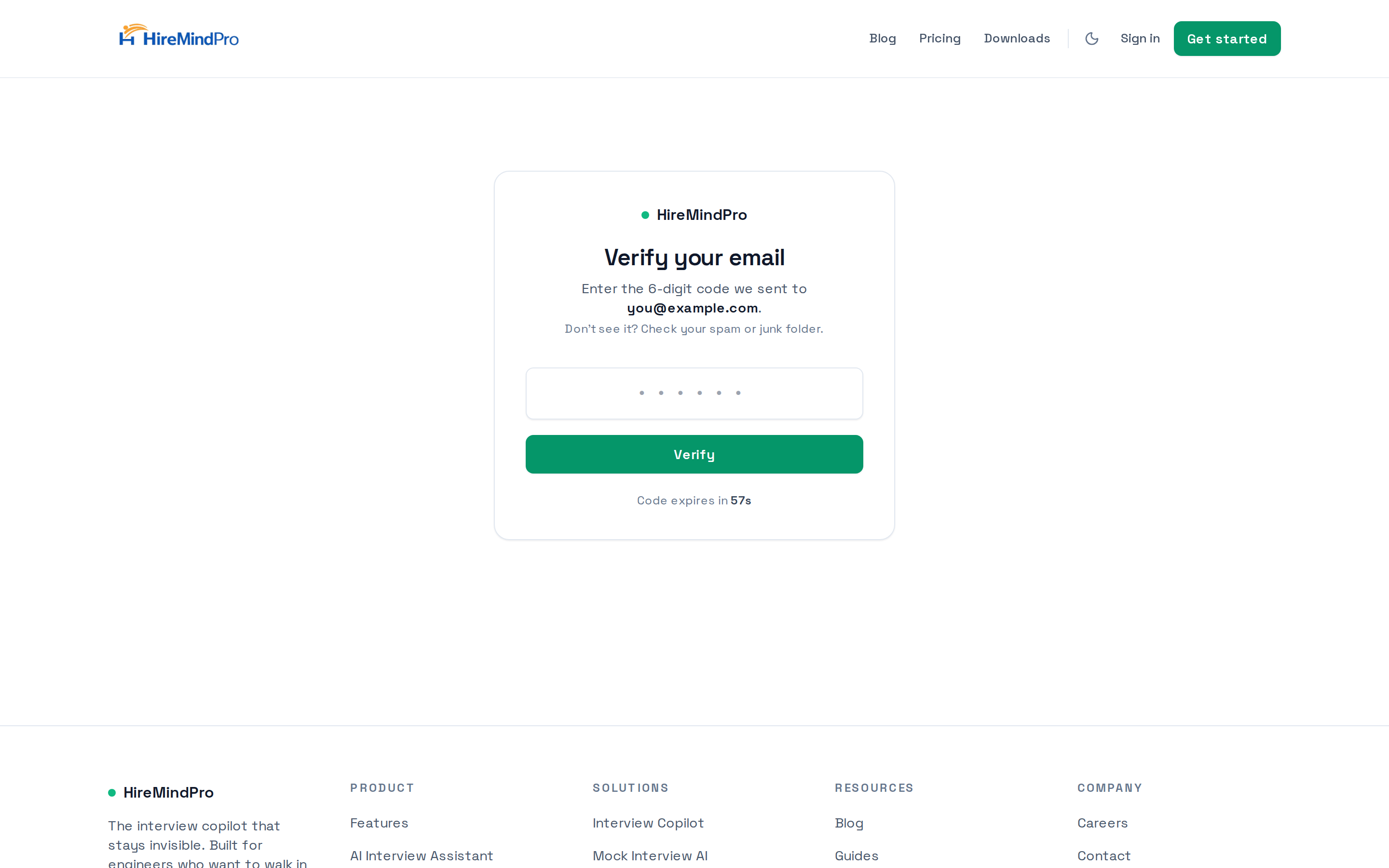
- On the Verify your email page, check your inbox for a 6-digit code (also check your spam/junk folder).
- Type the 6-digit code into the box and click Verify.
- If the code expires, wait for the countdown to finish, then click Send code again to get a fresh one.
- After verifying, you're signed in and sent to the Downloads page.
4
Sign in (returning users)
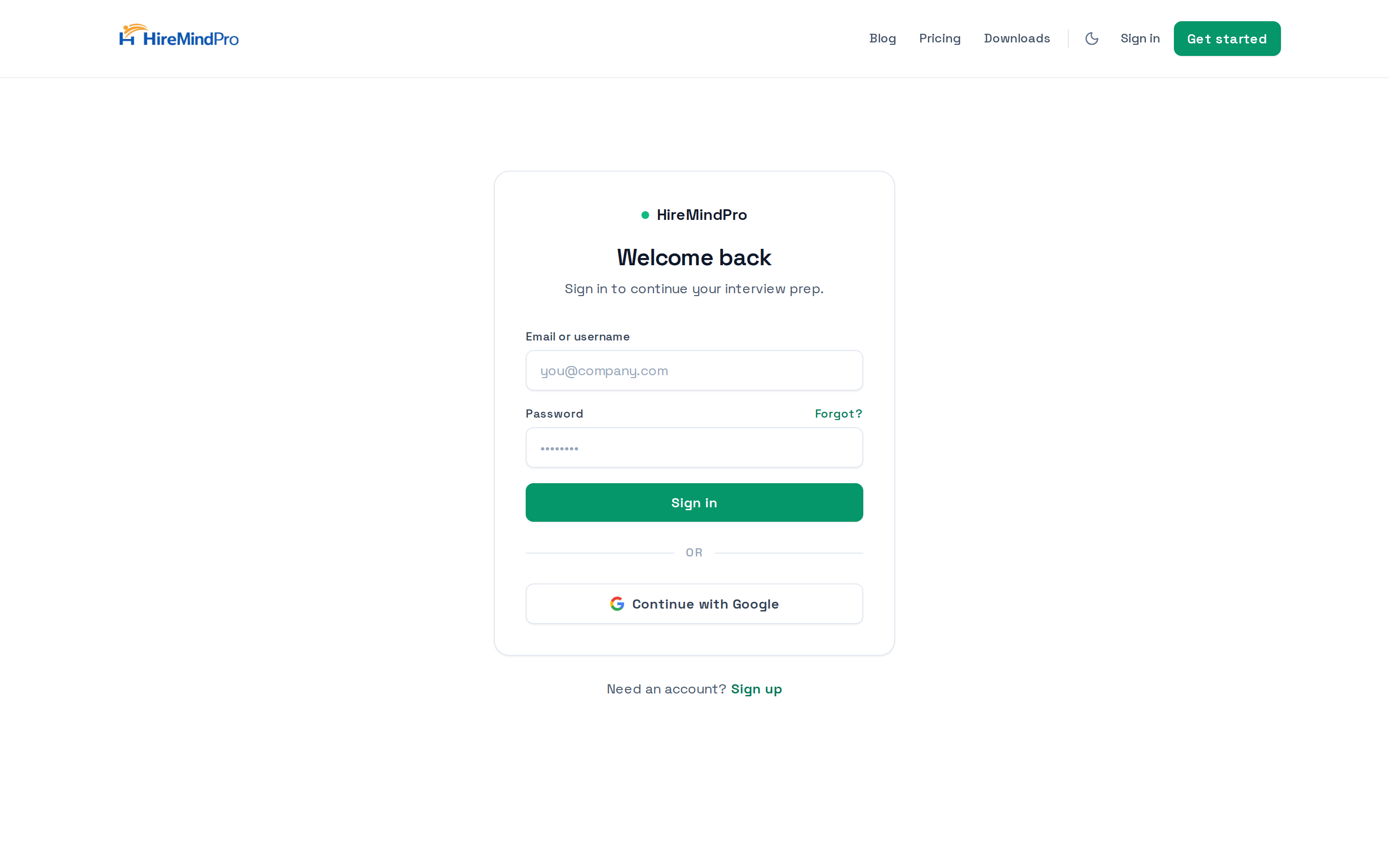
- Click Sign in in the navigation bar (or visit /signin).
- Enter your Email or username and your Password, then click Sign in.
- If you used Google to register, click Continue with Google instead.
- Forgot your password? Click the Forgot? link next to the password field to reset it.
- After signing in you'll land on My account, or on the page you originally tried to open if you were redirected to sign in.
Tip: If you sign in while another active web session exists, you'll be routed to My account > Security to resolve the session conflict before continuing.
5
Find your way around (main navigation)
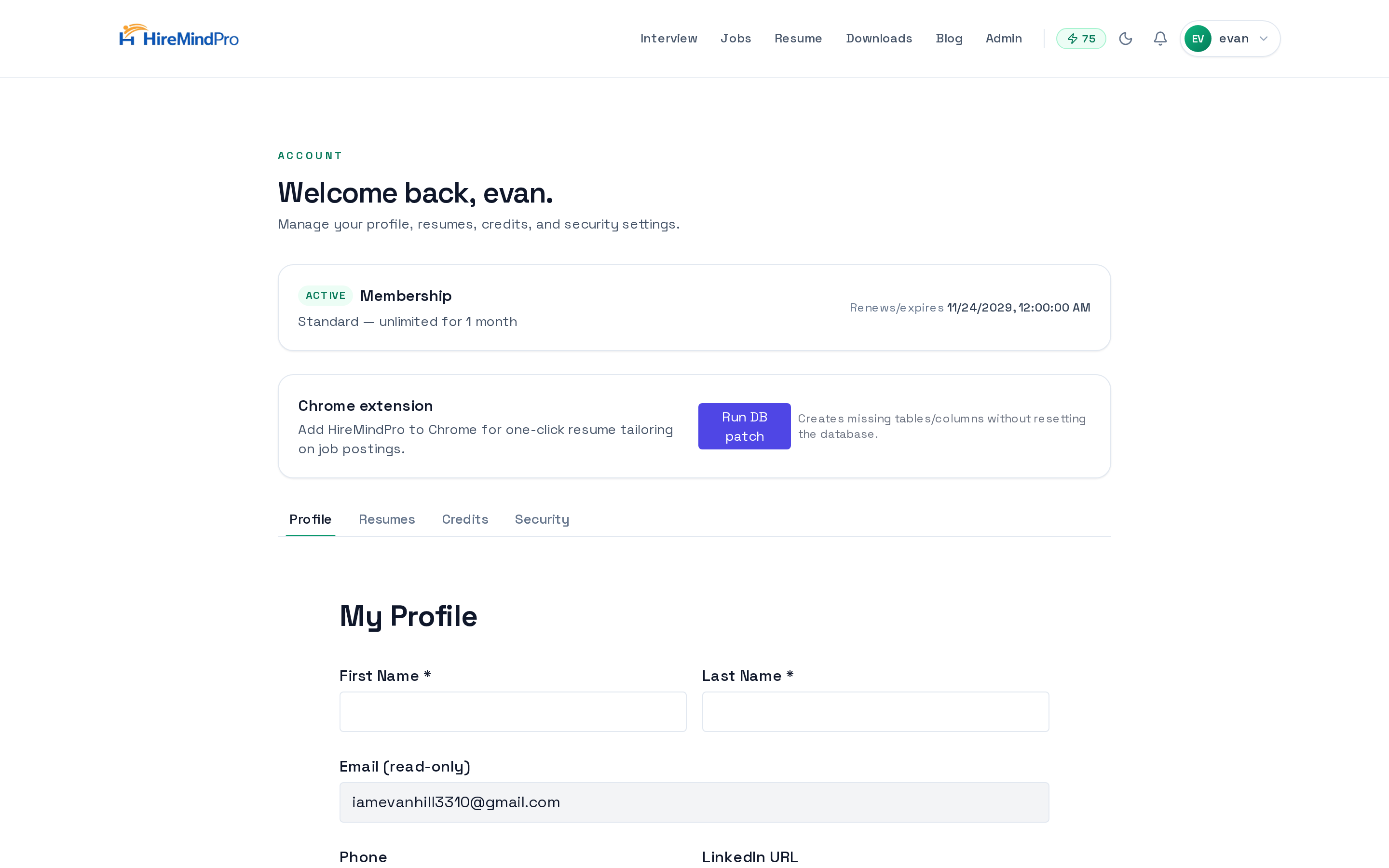
- Interview — opens the interview setup flow at /interview/setup to configure and start an interview session.
- Jobs — the curated job board at /jobs where you can browse roles and use auto-apply, plus the application kanban tracker.
- Resume — AI resume tailoring at /resume-tailor to adapt your resume to a specific role.
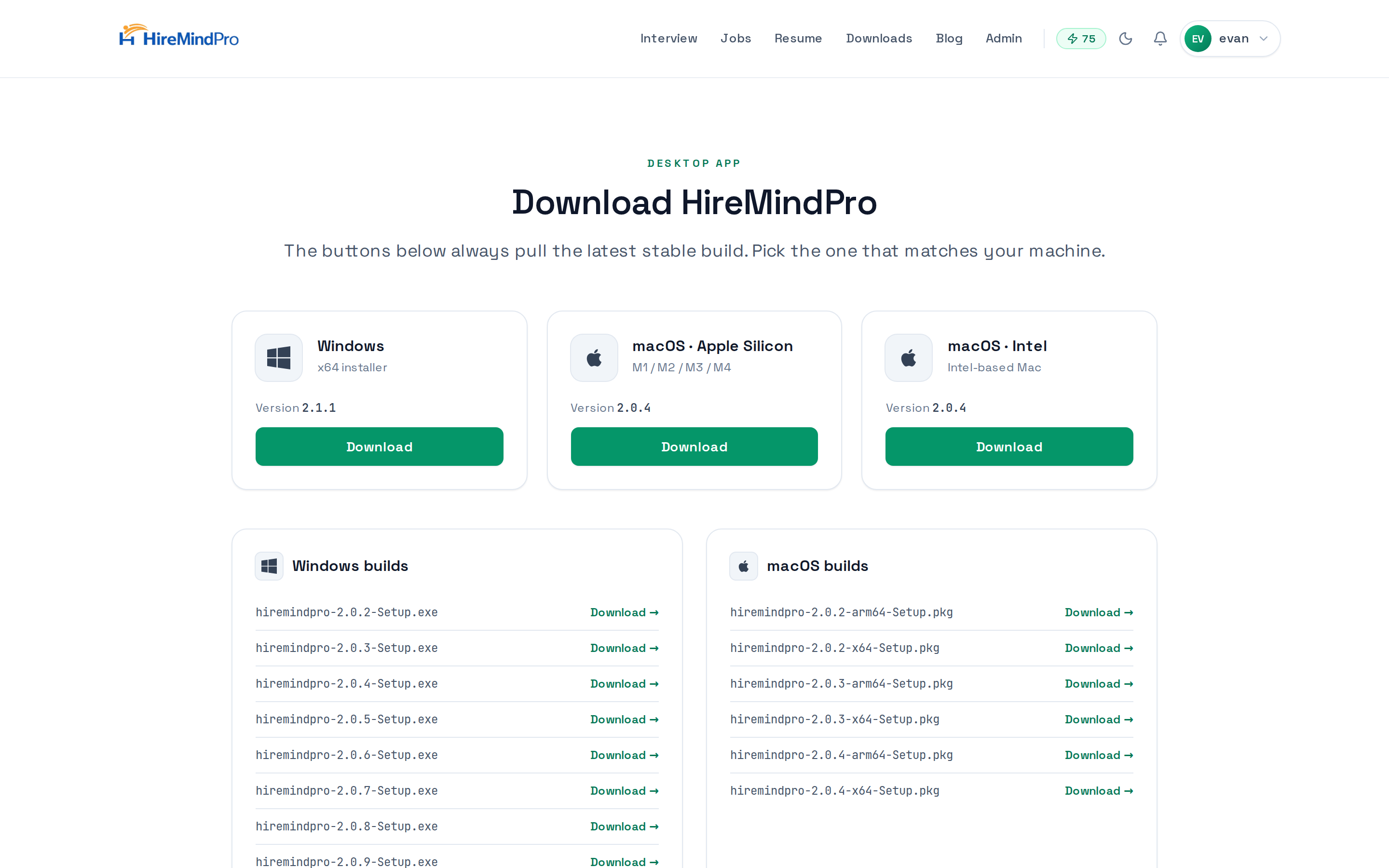
- Downloads — get the Windows or macOS desktop app at /downloads (needed for the live Interview Copilot with stealth mode).
- Your credit balance shows in the top bar and links to My account > Credits. Click your name/avatar to open the account menu (My account, Credits, Jobs, P2P support, Pricing, Notifications, and Sign out).
Tip: Signed-out visitors see Blog, Pricing, Downloads, Sign in, and Sign up in the nav. The full feature menu appears once you're logged in.
6
Where to go first
- Start on the Downloads page (where you land after verifying) to install the desktop app if you plan to use the live Interview Copilot.
- Try a free feature first: head to Resume (/resume-tailor) to tailor your resume, or Interview (/interview/setup) to run a mock interview.
- Browse the job board at Jobs (/jobs) and use your welcome credits to try Auto-apply (0.1 credits per application).
- Check My account > Credits to see your balance and, if you want more features or higher limits, view Pricing for subscription plans.
Tips & good to know
- Signing up is free and your account starts with 5 welcome credits, so you can try the credit-paid features (auto-apply, voice clone) immediately without subscribing.
- Credits are only spent on Auto-apply (0.1 each) and Voice clone training (10 each). Resume tailoring, cover letters, and mock interviews are free on any paid tier.
- The 6-digit verification code expires after a short countdown — if it lapses, just click Send code again.
- Passwords are rejected unless they're at least 8 characters AND contain both letters and digits.
- Email and username must each be unique — if either is already taken you'll get an 'Email or username already in use' error.
- The live Interview Copilot with stealth screen-share mode runs in the desktop app; download it from the Downloads page. Resume, jobs, and account features all work in the browser.
- On sign-in you can type either your email OR your username in the first field.
Ready to try it yourself?
Create your account →