
Tailor Your Resume
AI-optimize your resume for a specific job — two ways, with matching PDF and DOCX, a cover letter, and an application Q&A.
Resume Tailor rewrites your resume to match a target job, optimizing the wording and ATS keywords. You choose between two methods: "By job description" (a 4-step wizard that matches your resume to a saved job) or "By AI chat" (a conversation where you tell the AI what to change and refine it turn by turn). For both, you can keep your resume's original design with the "Keep my resume's original formatting" option, or get a clean, ATS-optimized template. You download the result as PDF and DOCX, and the wizard also generates a cover letter and an application Q&A helper.
- Who it's for
- Anyone applying to a specific role who wants their resume rewritten to match the job and pass ATS screening. Best when you have your current resume on hand (PDF, DOCX, or DOC) and, for the wizard, a saved job description. Requires an active paid plan.
- Cost
- Free on any active paid plan. Resume Tailor is gated by paid membership, not credits — it does not consume credits.
- Before you start
- A HireMindPro account, signed in (you are redirected to /signin if not)
- An active paid membership — Starter, Standard, Pro, Ultra, or Hermes. Basic or expired plans are redirected to /pricing
- Your current resume file as PDF, DOCX, or DOC (max 10 MB)
- For the 'By job description' method: at least one saved job (created on the Interview page, or via the in-page 'Create a new job' dialog)
- No desktop app needed — everything runs in the browser
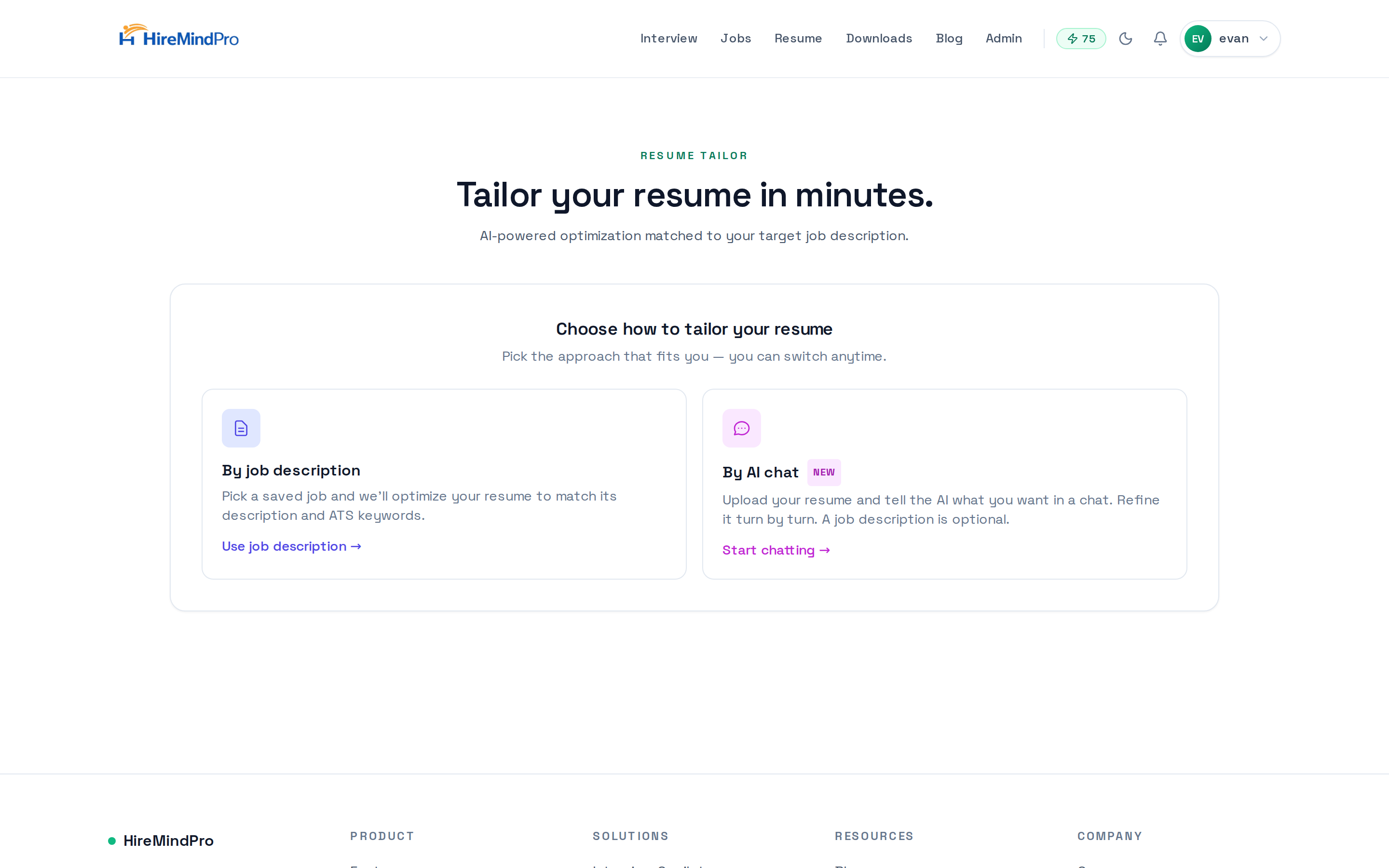
Open Resume Tailor and pick a method
- Go to /resume-tailor while signed in on a paid plan (otherwise you are redirected to /pricing or /signin).
- On the 'Choose how to tailor your resume' screen, pick one of the two cards.
- Choose 'By job description' to match a saved job step-by-step (best when you have the job posting saved).
- Choose 'By AI chat' (marked 'New') to upload your resume and tell the AI what to change in a conversation — a job description is optional here.
- You can switch methods anytime using the '← Back to options' link.
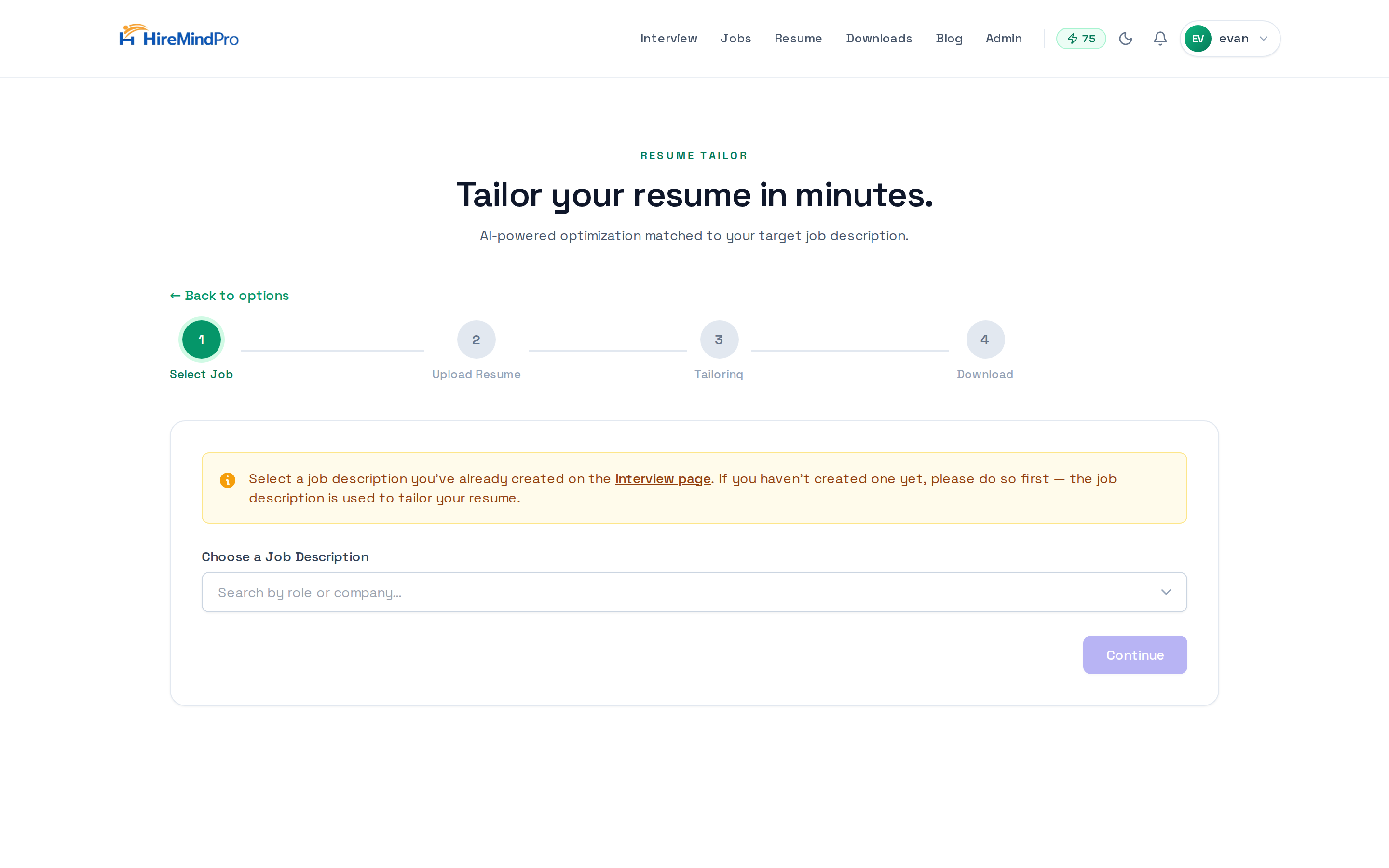
Method 1 — By job description: Step 1, Select Job
- The wizard shows a 4-step progress bar: Select Job, Upload Resume, Tailoring, Download.
- Under 'Choose a Job Description', search by role or company and select a saved job. The job's role, company, industry, and description preview appear once selected.
- If you have no saved jobs, click 'Create a Job' (or '+ Create a new job' in the search box) to open the 'Create a new job' dialog. Fill in Industry, Company, and Role (required), plus an optional Interview stage and Job description, then click 'Create job'.
- Alternatively, click 'Go to Interview Setup' to create jobs on the Interview page first.
- Click 'Continue' once a job is selected.
Method 1 — Step 2, Upload Resume
- Drag and drop your resume onto the upload area, or click it to browse. Accepted: PDF, DOCX, or DOC, up to 10 MB.
- Once a file is attached you'll see its name and size, and can click to replace it.
- Optionally check 'Keep my resume's original formatting' (see the dedicated section below). This is only available for DOCX and PDF uploads.
- Click 'Start Tailoring'. Use 'Back' to return to job selection.
Method 1 — Step 3 & 4, Tailoring and Download
- The 'Tailoring your resume…' screen shows progress messages (parsing, analyzing requirements, matching keywords, rewriting bullets, optimizing for ATS, generating documents). This typically takes 20–40 seconds.
- If something fails, you'll see an error with a 'Go Back & Retry' button.
- On the Download step you get the full result: download buttons, ATS keywords matched, a resume preview, a cover letter, and an application Q&A panel.
- Click 'PDF' or 'DOCX' to download. Files are named after you and the job, e.g. Jane_Doe_Senior_Engineer_Acme.
- Click 'Tailor Another Resume' to start over.
Use the cover letter (wizard only)
- A cover letter is generated automatically and shown in the right-hand 'Cover Letter' panel on the Download step.
- Click 'Copy Cover Letter' (or the small copy icon in the panel header) to copy it to your clipboard — it briefly shows 'Copied!'.
- Use the 'Length' dropdown (Short / Medium / Long) at the top right to regenerate the cover letter at a different length; the panel shows 'Regenerating…' while it updates.
Use the application Q&A (wizard only)
- In the 'Application Q&A' panel, type a question such as 'Why are you interested in this role?' and press the send arrow (or Enter).
- The AI answers using the job description and your tailored resume; answers stream into the conversation.
- Click 'Copy' under any answer to copy it. The answer length follows the 'Length' dropdown selection.
Method 2 — By AI chat
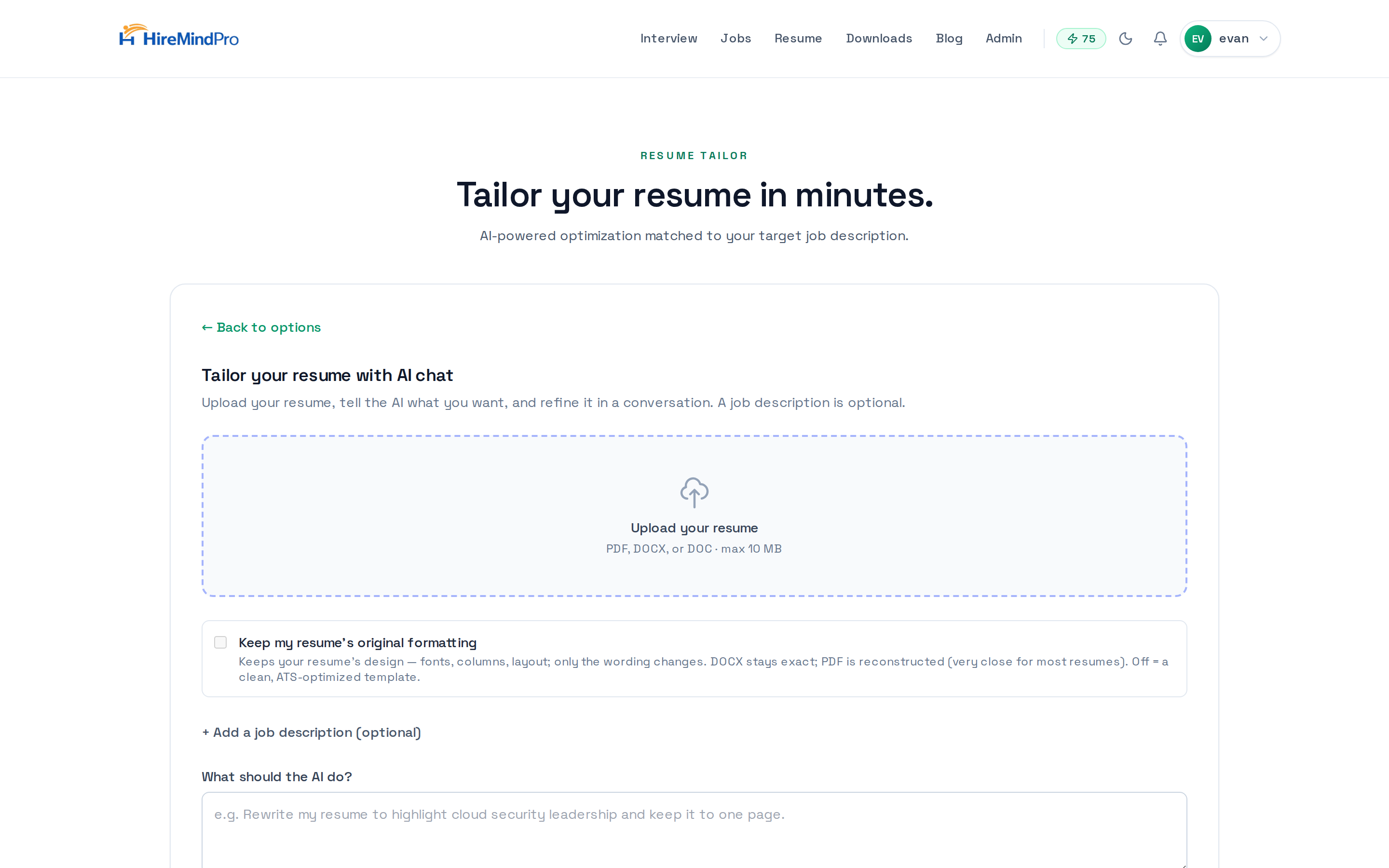
- Click 'By AI chat' on the chooser to open 'Tailor your resume with AI chat'.
- Upload your resume (drag-and-drop or click; PDF, DOCX, or DOC, max 10 MB).
- Optionally check 'Keep my resume's original formatting' (DOCX or PDF only).
- Optionally click '+ Add a job description (optional)' and paste a posting for extra context.
- In 'What should the AI do?', type your first instruction — or click a suggestion chip like 'Make it more concise — one page max.' or 'Emphasize leadership and team impact.'
- Click 'Start tailoring'. The screen splits into a chat on the left and a live resume preview on the right.
- Refine turn by turn: type follow-up requests in the message box (Enter to send, Shift+Enter for a newline) and click 'Send'. The preview updates after each turn.
- Download anytime with the 'Download PDF' or 'Download DOCX' buttons at the top right.
Keep my resume's original formatting
- This checkbox appears in both methods, on the upload screen. It is only enabled for DOCX and PDF uploads (greyed out for DOC).
- Leave it OFF (default) to get a clean, ATS-optimized single-column template — the AI rewrites your content into HireMindPro's structured format.
- Turn it ON to keep your resume's design — fonts, columns, and layout — and change only the wording.
- For a DOCX upload, your document is edited in place, so the layout stays exact.
- For a PDF upload, your file is first reconstructed into an editable document, then re-rendered — very close to the original for most resumes, but not always pixel-perfect.
- In preserve mode the result shows a PDF preview of your formatted resume plus 'Download PDF' / 'Download DOCX' buttons (no separate cover letter or Q&A panel).
Tips & good to know
- Resume Tailor is completely free on any paid plan — there's no credit cost, so tailor as many resumes as you need.
- The better your job description, the better the match. For the wizard, paste the full posting when creating the job; for chat, use the optional '+ Add a job description' field.
- Max file size is 10 MB; accepted types are PDF, DOCX, and DOC. If text can't be extracted (e.g. a scanned/image-only PDF), you'll get an error — use a text-based file.
- The wizard gives you the most: ATS keywords, a cover letter (with adjustable length), and an application Q&A. The chat method is best for iterative, conversational refinement.
- Use 'Keep my resume's original formatting' to preserve your design; DOCX stays exact, PDF is reconstructed.
- Downloaded files are auto-named with your name and the role/company so your saved resumes stay organized.
- The chat method's preserve mode keeps a working copy of your edited document for the session — if you see 'Session expired', just re-upload your resume to continue.
FAQ
Does Resume Tailor cost credits?
No. It's free on any active paid plan (Starter, Standard, Pro, Ultra, or Hermes). It's gated by paid membership rather than credits, so it never consumes credits. Basic or expired plans are sent to the pricing page.
What's the difference between the two methods?
'By job description' is a guided 4-step wizard that matches your resume to a saved job and also gives you ATS keywords, a cover letter, and an application Q&A. 'By AI chat' lets you upload your resume and refine it conversationally turn by turn, with a job description optional.
What file types and sizes can I upload?
PDF, DOCX, or DOC, up to 10 MB. If the file is image-only/scanned and no text can be extracted, you'll get an error — use a text-based file instead.
What does 'Keep my resume's original formatting' do?
It preserves your resume's design (fonts, columns, layout) and changes only the wording. It's available for DOCX and PDF uploads. DOCX stays exact; PDF is reconstructed and re-rendered, which is very close for most resumes. Leave it off to get a clean ATS-optimized template.
Can I get a cover letter?
Yes, in the 'By job description' wizard. A cover letter is generated automatically on the Download step; you can copy it and switch its length (Short / Medium / Long) with the Length dropdown.
How long does tailoring take?
Typically 20–40 seconds in the wizard. The chat method updates after each message you send.
Do I need the desktop app?
No. Resume Tailor runs entirely in your browser.
Ready to try it yourself?
Open Resume Tailor →