
Interview Copilot (Live Assistant)
Your real-time AI sidekick that listens to the interviewer and feeds you answers, code, and talking points live.
Interview Copilot is HireMindPro's live interview assistant. During a real remote interview, it captures your screen and the interviewer's audio, transcribes the questions into live captions (with optional translate-to-English), and streams concise AI answers into a panel only you can see. It handles coding, system design, and behavioral questions, personalized using your active resume and the job you're interviewing for. The live tool runs at /app; the desktop app adds a stealth overlay that stays hidden from screen-share recording on Zoom, Google Meet, and Teams.
- Who it's for
- Candidates taking live remote interviews (coding, system design, behavioral, recruiter screens) who want real-time, role-specific answer support. You need a paid plan (Standard or Pro) for full use; BASIC users get a short free trial. Use the desktop app if you want the assistant invisible during screen sharing.
- Cost
- No credits. The live Interview Copilot does not spend credits (CREDIT_COSTS only covers auto-apply and voice clone). Access is gated by paid membership and a usage-time window (daily/monthly/unlimited). BASIC gets a free ~5-minute trial; after that you'll see 'Trial ended' or a 'Usage limit reached' prompt to upgrade.
- Before you start
- A HireMindPro account, signed in
- A paid plan (Standard or Pro) for full interview time; BASIC accounts get a limited free trial (5 minutes)
- An active resume set in My Account (the copilot personalizes answers from it)
- A working microphone (the app errors with 'Microphone not found' if none is detected)
- On desktop: a Chromium-based browser that supports screen capture with audio, or the HireMindPro desktop app for stealth/invisible overlay
- For stealth (invisible during screen share): the HireMindPro desktop app from /downloads (Windows or macOS)
Get set up first (one-time)
- Sign in to HireMindPro.
- Open My Account and make sure you have an active resume selected under RESUMES — the copilot uses it to personalize answers.
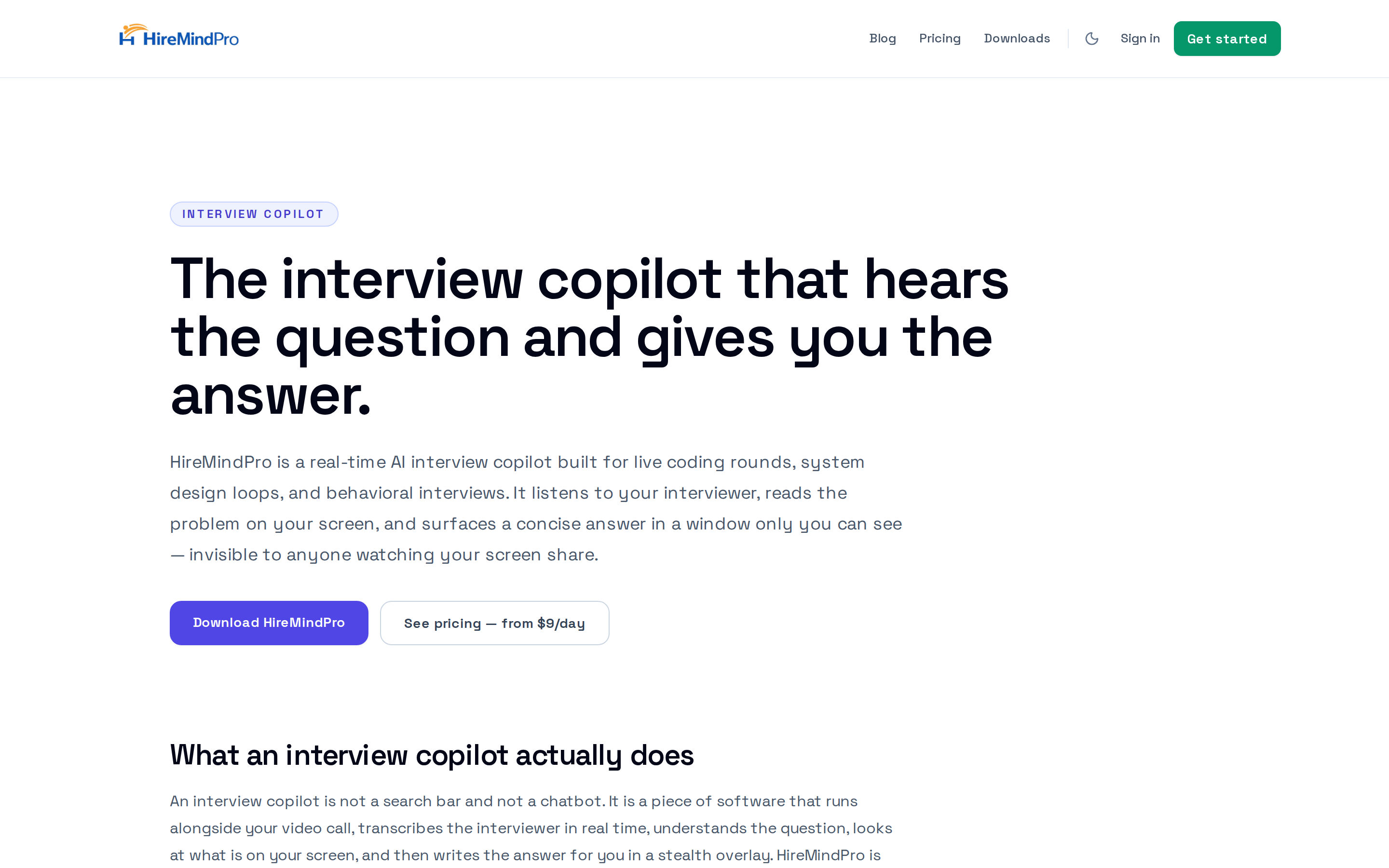
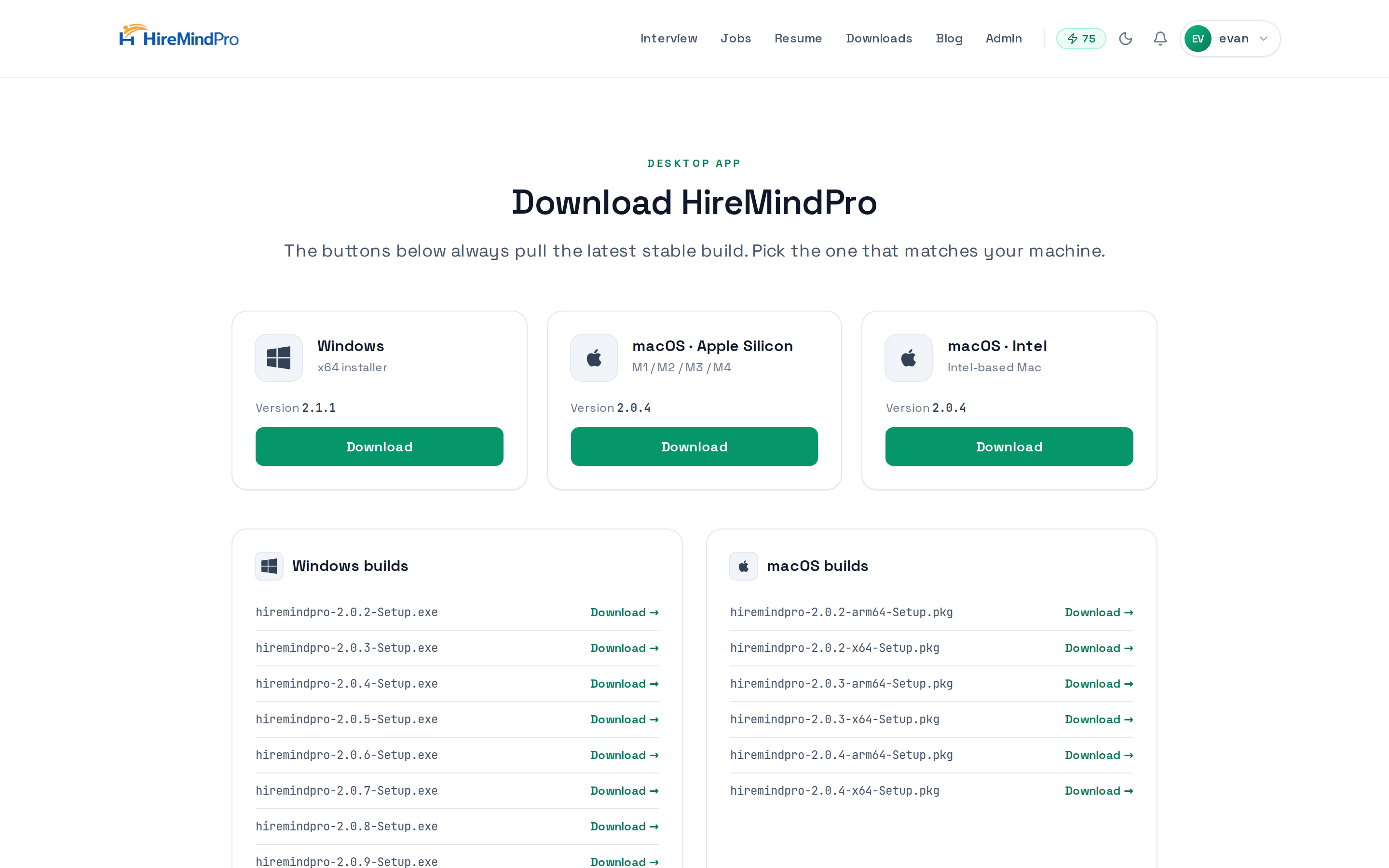
- (Optional, for stealth) Go to /downloads and install the HireMindPro desktop app for your OS (Windows x64, macOS Apple Silicon, or macOS Intel). The buttons always pull the latest stable build.
Pick the job you're interviewing for
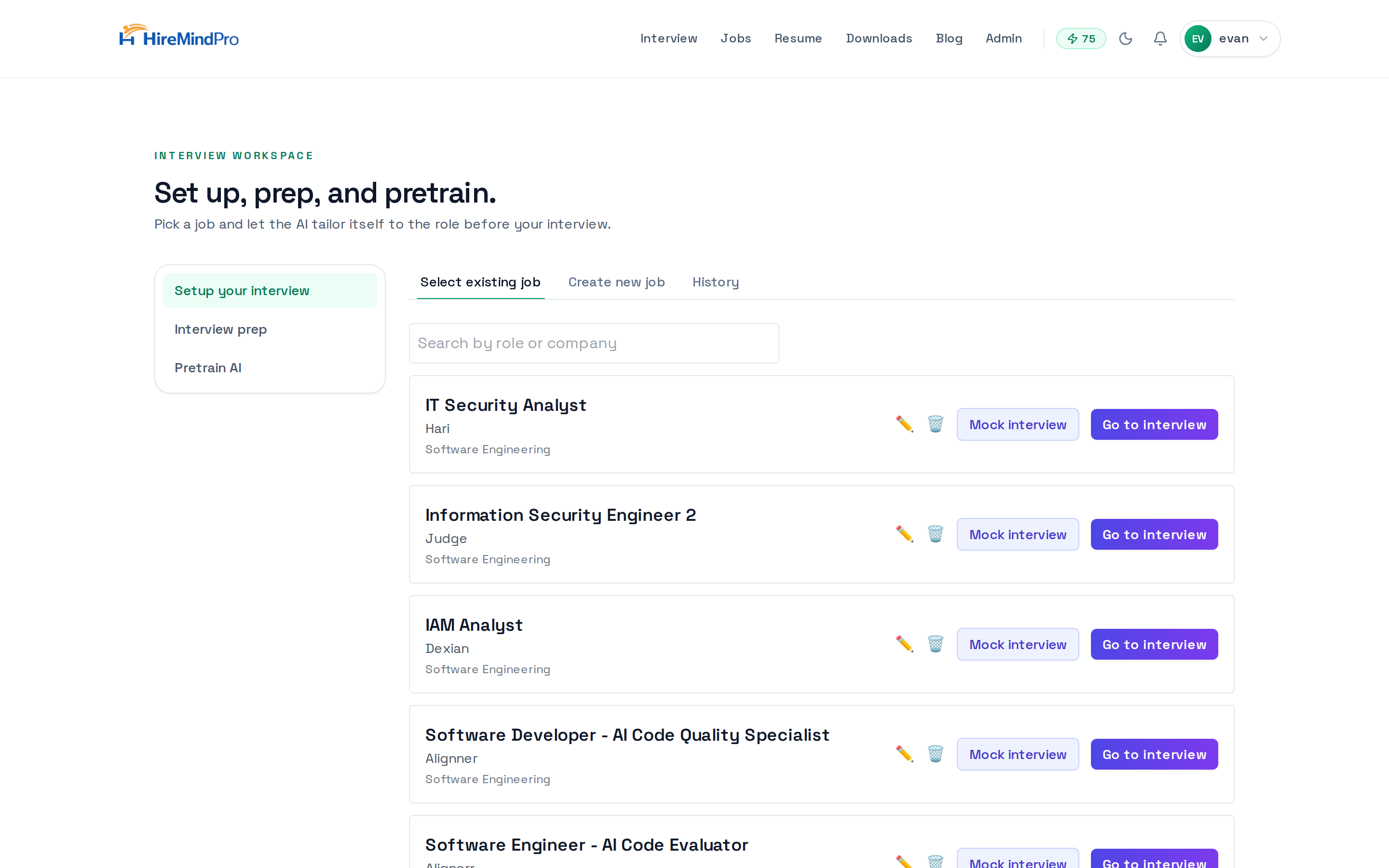
- Go to /interview/setup (the 'Setup your interview' workspace). If you're not on Standard or Pro you'll be redirected to /pricing.
- On the 'Select existing job' tab, choose a saved job — or open 'Create new job' and fill in Industry, Company, Role, Interview stage (e.g. Technical interview, Behavioral interview), and an optional Job Description, then click Continue.
- Click 'Go to interview' on the job card to launch the live copilot at /app.
- Tip: the same screen has 'Interview prep' and 'Pretrain AI' tabs to prepare the assistant beforehand, plus a 'History' tab to review past sessions.
Tune your copilot settings
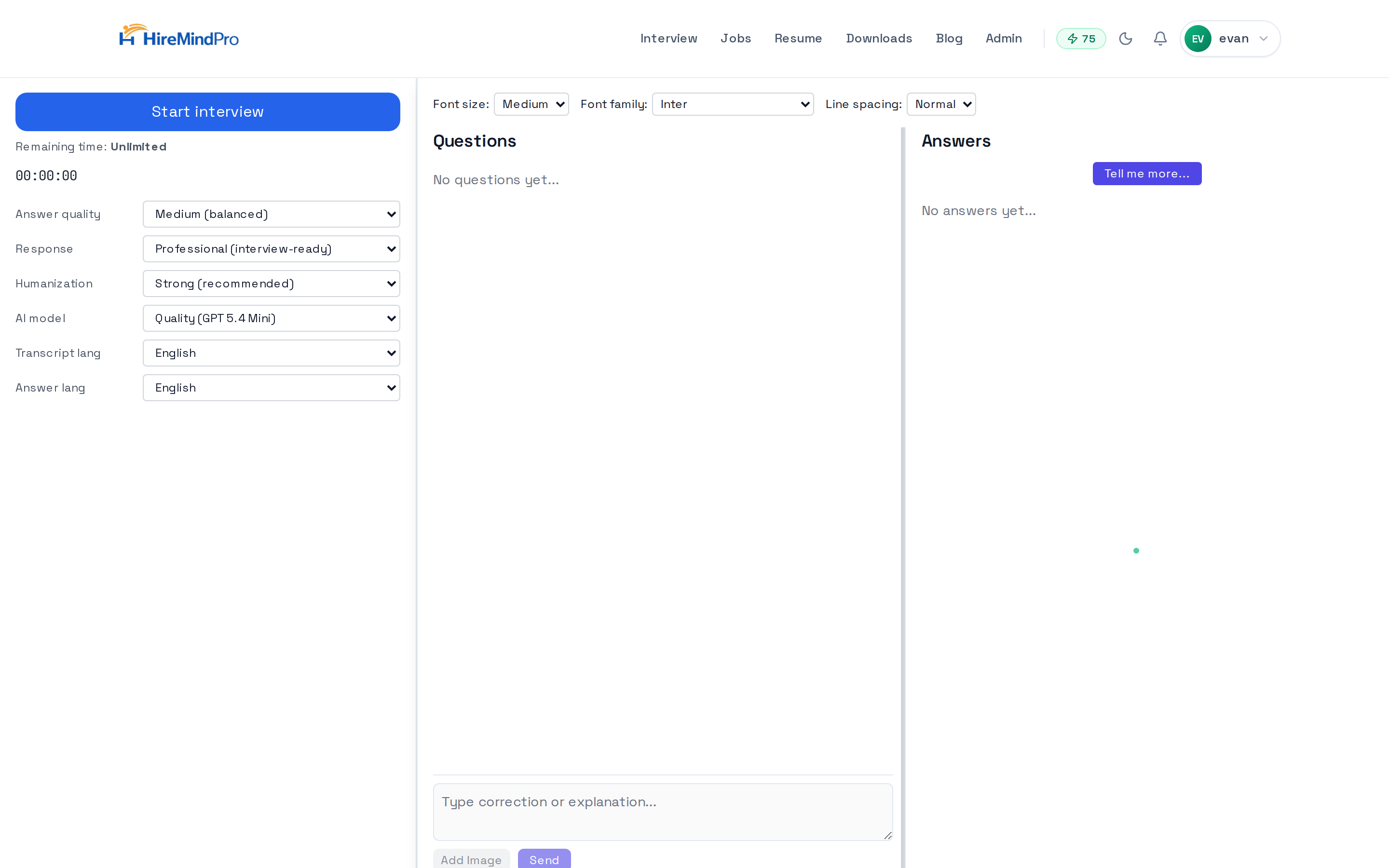
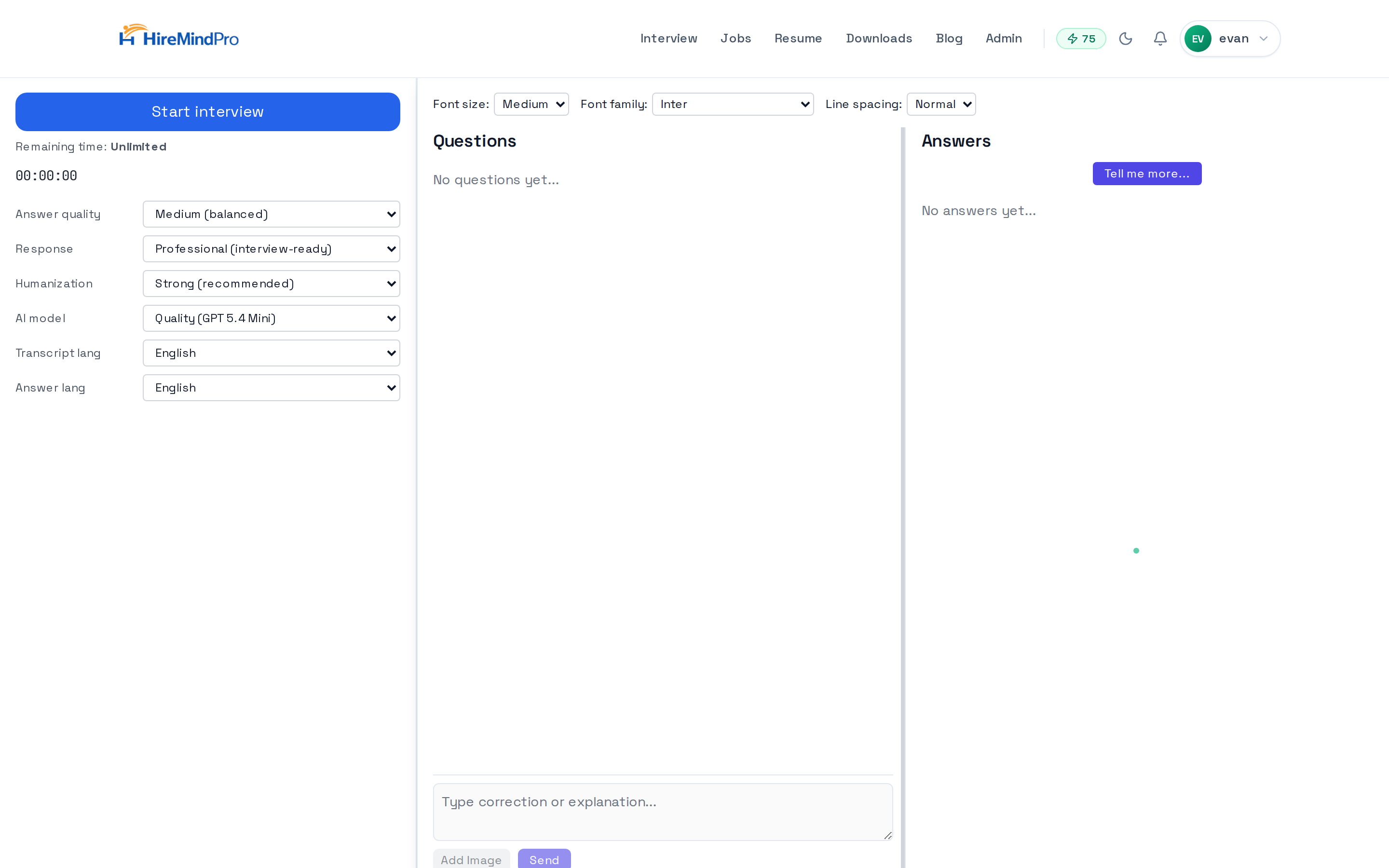
- In the left panel at /app, set Answer quality: High (detailed), Medium (balanced), or Low (fastest).
- Set Response style: Conversational (spoken) for natural delivery, or Professional (interview-ready).
- Set Humanization: Balanced, Strong (recommended), or Very strong (max) to make answers sound natural.
- Pick the AI model: Quality (GPT 5.4 Mini), Balanced, Quality Fast (GPT 5.4 Nano), or Speed (Cerebras).
- Choose Transcript lang for the captions (English, Spanish, Hindi, Chinese, and more), or pick 'Any language → English (incl. Arabic)' to translate the interviewer into English.
- Choose Answer lang for the language your answers come back in.
Start the live interview
- Click 'Start interview' (on mobile this reads 'Start mic-only coach').
- Confirm the 'Ready to start?' dialog, which shows your current active resume name — click 'Continue to start' (or 'Go to My Account' to change your resume first).
- When the browser asks, share the interview tab or window AND enable 'Share tab audio' / system audio so the copilot can hear the interviewer. Allow microphone access too.
- Watch the live captions appear under 'Questions' as the interviewer speaks. A 'Listening' spinner shows audio is being processed, and a timer plus your remaining time are displayed.
Get answers in real time
- For a captured question, click the ↻ (generate answer) button on the question bubble, or press Ctrl+Space, to stream an AI answer into the 'Answers' panel.
- Use the per-question buttons to Copy the question text (📋), Skip a question (⏭), or Attach a screenshot (📎) — you can also paste an image directly onto a question (e.g. a coding problem) for the AI to read.
- Type a custom question into the manual input box at the bottom of the Questions panel to ask anything directly.
- Click 'Tell me more...' under Answers to expand the most recent answer with deeper detail.
- Adjust Font size, Font family, and Line spacing at the top of the panel for easy reading during the call.
Finish and review
- Click 'Stop interview' (red button) when you're done — this ends capture and saves the session.
- Fill in the optional star rating + feedback prompt, or close it.
- Review the full transcript later under /interview/setup → History, where you can Open a session, Export it as a .txt, or delete it.
Optional: P2P Remote Support (observer)
- Go to /p2p (requires a paid plan — Standard or above).
- Enter the email or username of someone running the HireMindPro desktop app and click 'Check Availability'.
- When they show as 'User is online and available', click 'Request Access' and wait for them to accept.
- Once connected you can view (and control) their screen, switch between their displays, mute your mic, open chat to paste code, zoom, and go fullscreen; click 'Disconnect' to end.

Tips & good to know
- The copilot needs to HEAR the interviewer: when sharing your screen, always enable the 'Share tab/system audio' option, or it can only transcribe your own mic.
- Set your active resume in My Account before starting — answers are built from it, and the start dialog will warn you if it's 'not set'.
- For invisibility during screen share, use the desktop app from /downloads; the in-browser /app tool works but isn't hidden from your own shared screen.
- BASIC accounts get only ~5 minutes free; you'll hit a 'Trial ended' / 'Usage limit reached' modal and need to upgrade for real interview length.
- Use Ctrl+Space as a fast hotkey to generate the answer for the current question without reaching for the mouse.
- Paste or attach a screenshot of a coding problem to a question so the AI can read the actual problem on your screen.
- Pick the 'Speed (Cerebras)' model and 'Low' answer quality when you need the fastest possible response mid-sentence; switch to 'High' + a quality model for detailed system-design answers.
- Use the 'Any language → English' transcript option for non-English interviewers; expect slightly burstier captions because it processes short audio segments.
FAQ
Where is the actual live copilot — at /interview-copilot?
No. /interview-copilot and /ai-interview-assistant are informational pages. The live tool runs at /app, which you reach by picking a job at /interview/setup and clicking 'Go to interview'.
Does it cost credits?
No. The live copilot doesn't consume credits — credits are only used for auto-apply and voice clone. Access is based on your paid plan and a usage-time window (daily/monthly/unlimited).
Why can't it hear the interviewer's questions?
You most likely didn't share audio. When the browser prompts you to share your screen/tab, enable the 'Share tab audio' or system-audio checkbox so the interviewer's voice reaches the transcriber.
Is it invisible to the interviewer during screen share?
Use the desktop app (from /downloads) for the stealth overlay that's excluded from screen-capture recording. The plain in-browser /app version works but is part of your normal screen.
Can I take an interview in another language?
Yes. Set Transcript lang to your interviewer's language, or choose 'Any language → English' to translate captions, and set Answer lang to the language you want answers in.
How do I review what was said after the interview?
Go to /interview/setup, open the History tab, and Open or Export (.txt) any past session.
Ready to try it yourself?
Get the desktop app →