
Mock Interview (AI Interviewer)
Practice a realistic, voice-and-video mock interview with an AI interviewer tailored to your target role, then review the full transcript.
Mock Interview drops you into a live, real-time interview room where an AI interviewer talks to you over video and audio, asks questions tailored to a specific job you set up (company, role, industry, stage, and optional job description), and reacts to your answers in real time. For coding or code-assessment rounds, a built-in code editor (Coderpad, powered by Monaco) lets you write code in 17 languages while the interviewer watches. Every session is captured as a live transcript and saved to your History, where you can reopen or export it as a text file. It runs entirely in your browser at /interview/setup and /interview/mock — no desktop app is required.
- Who it's for
- Anyone preparing for a real interview who wants to rehearse out loud against a realistic, on-demand interviewer instead of practicing alone. It is useful for technical, coding, behavioral, recruiter-screen, and final-round practice, and the AI adapts to the seniority and company you specify. You need an active paid HireMindPro plan to start a session.
- Cost
- Free on any active paid plan. Mock interviews do NOT consume credits — they are gated by paid membership instead (credits are only spent on Auto-apply and Voice clone). If your plan is Basic/free or expired, you are sent to the pricing page rather than charged.
- Before you start
- A HireMindPro account (you must be signed in)
- An active paid membership — the mock interview server gate requires a current, non-expired paid plan (Starter, Standard, Pro, Ultra, or Hermes). Free/Basic or expired members are redirected to the pricing page.
- A working microphone (and optionally a webcam) — you must allow browser mic/camera access so the AI interviewer can hear you
- At least one saved job (company, role, industry, and ideally the interview stage and job description) to tailor the questions
- A modern desktop browser with a stable internet connection (the room runs in real time over LiveKit)
Open the Interview workspace
- Sign in to HireMindPro.
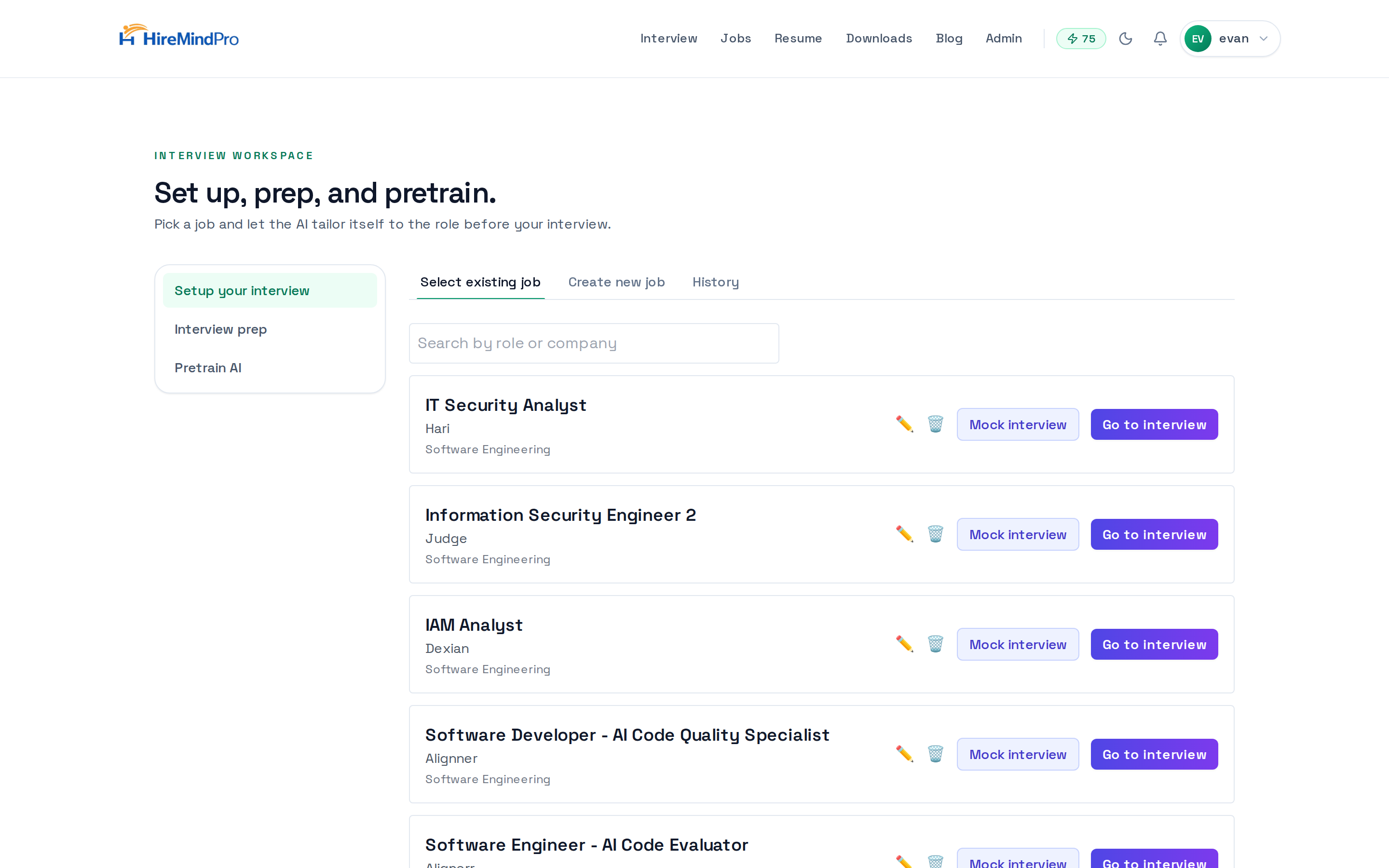
- In the top navigation bar, click Interview. This takes you to /interview/setup, the interview workspace.
- If you are not on a paid plan, you will be redirected to the pricing page — upgrade first, then return here.
- The left sidebar shows three sections: Setup your interview, Interview prep, and Pretrain AI. Stay on Setup your interview to create or pick a job.
Create the job you want to be interviewed for
- On the Setup your interview tab, click the Create new job tab.
- Under Industry & Company, choose an Industry from the dropdown and type the Company you are interviewing for.
- Under Role Details, type the Role (for example, 'Senior Backend Engineer').
- Pick an Interview stage: Introduction call, Technical interview, Online code assessment, Behavioral interview, Final interview, or Other. If you pick Other, describe the custom stage in the box that appears.
- Optionally paste the Job Description — this makes the AI's questions much more specific to the actual posting.
- Click Continue to save the job. You are returned to the Select existing job list.
Start the mock interview
- On the Select existing job tab, find your job in the list (use the 'Search by role or company' box if you have many).
- Click the Mock interview button on that job's row. This opens the interview page at /interview/mock/{jobId}.
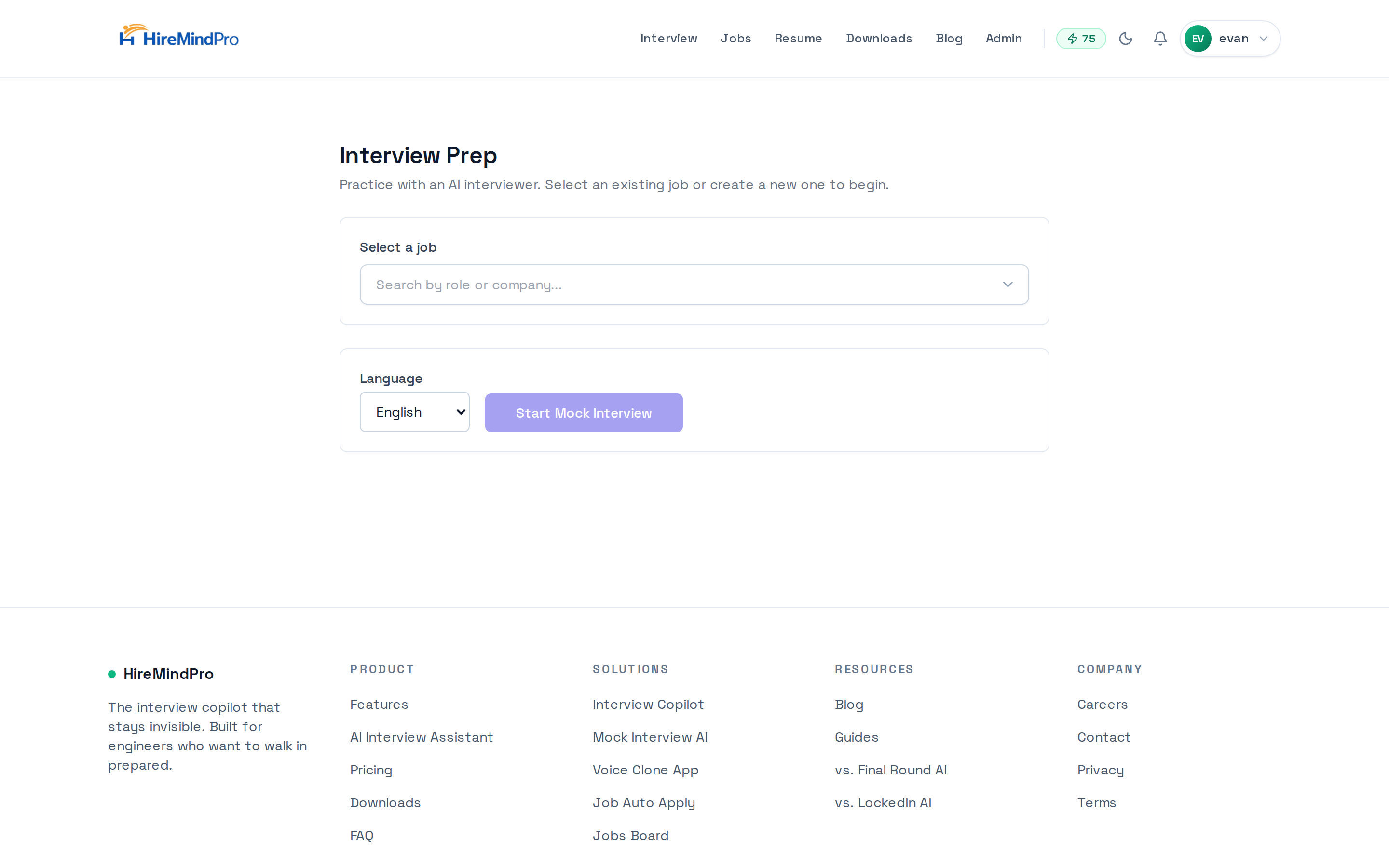
- Alternatively, go to /interview/mock, select the job from the 'Select a job' combobox, choose a Language, and click Start Mock Interview.
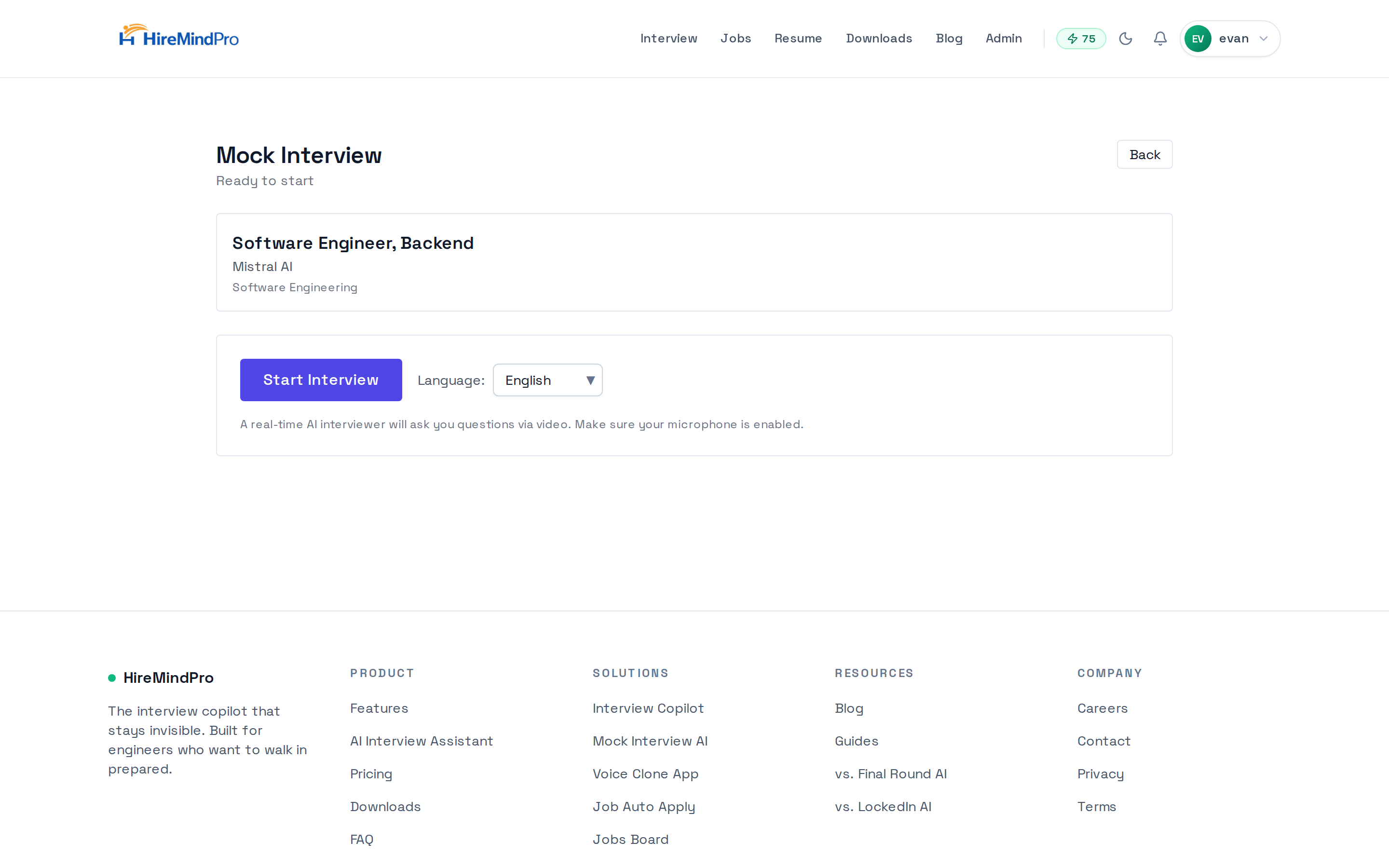
- On the Mock Interview page, confirm the job card shows the right role, company, and stage.
- Optionally change the Language dropdown (English, Spanish, French, German, Japanese, Chinese, Russian, Ukrainian).
- Click Start Interview. The button shows 'Starting…' while the room and AI interviewer are set up.
During the interview
- Wait a moment for the status to change from 'Connecting to interview room…' / 'Waiting for interviewer to join…' to the green 'Interview in progress'. The AI Interviewer avatar pulses when it is speaking.
- Speak your answers naturally out loud — the interviewer listens, asks follow-ups, and pushes back in real time. Your words and the interviewer's appear live in the Transcript panel.
- Use Mic On / Unmute Mic to mute or unmute yourself, and Camera On / Camera Off to toggle your webcam (your video shows in the small picture-in-picture).
- For coding rounds, click Show Coderpad to open the code editor, pick your Language (Python, JavaScript, TypeScript, Java, C++, C, C#, Go, Rust, SQL, Ruby, PHP, Swift, Kotlin, Scala, R, or Shell), and type your solution — the interviewer sees your code as you write. Click Hide Coderpad to collapse it.
- When you are done, click End Interview (or End) to leave the room. The page shows 'Interview ended. You can start a new one or go back.'
Review your feedback and transcript
- Go back to the Interview workspace (Interview in the nav, or the Back button).
- On the Setup your interview tab, click the History tab.
- Find the session by role/company (use the search box) and click Open to read the full back-and-forth conversation between you and the interviewer.
- Click the download (⬇️) icon to export the session as a .txt transcript named after the role and company.
- Use the transcript to self-assess: re-read where the interviewer pushed back, where your answers were thin, and rehearse those spots again in a fresh session.
- To remove a session, click the trash (🗑️) icon on its row.
Tips & good to know
- Mock interviews are free on any paid plan — they never cost credits.
- Add the real job description when creating the job; it noticeably improves how relevant and role-specific the questions are.
- The interview stage drives the format: 'Online code assessment' opens with the Coderpad editor visible, while behavioral/intro stages stay conversation-only (you can still open Coderpad manually).
- Allow microphone access before starting — without it the AI interviewer can't hear your answers. Camera is optional.
- Pick your spoken Language before clicking Start Interview; you can practice in English, Spanish, French, German, Japanese, Chinese, Russian, or Ukrainian.
- The room token lasts about 30 minutes and the room times out if left empty, so treat each session like a real timed round.
- Note the difference between the marketing page at /mock-interview (public landing page) and the actual product, which lives under Interview → /interview/setup and /interview/mock.
- Your spoken answers and the interviewer's questions are saved as a transcript you can reopen or export from the History tab — there is no separate scorecard download in-app, so use the transcript for review.
FAQ
Does a mock interview cost credits?
No. Mock interviews are included free with any active paid plan (Starter, Standard, Pro, Ultra, or Hermes). Credits are only spent on Auto-apply and Voice clone. If your membership is free/Basic or expired, you'll be redirected to the pricing page instead.
Do I need to download a desktop app?
No. The mock interview runs entirely in your browser. You just need a signed-in paid account, a microphone, and a stable connection.
How does the AI tailor the questions to me?
It uses the job you set up — industry, company, role, interview stage, and the optional job description. Adding the real job description makes the questions much more specific to that role and seniority.
Can I practice coding questions?
Yes. Click Show Coderpad in the interview room (or set the stage to 'Online code assessment' so it opens automatically) to get a code editor supporting 17 languages including Python, JavaScript, Java, C++, Go, Rust, and SQL. The interviewer can see your code as you type.
What language can the interview be in?
You can choose English, Spanish, French, German, Japanese, Chinese, Russian, or Ukrainian from the Language dropdown before you click Start Interview.
Where do I find my feedback after the interview?
Open the Interview workspace, go to the History tab, and click Open on a session to read the full transcript of the conversation, or click the download icon to export it as a .txt file.
Why won't the interviewer respond to me?
Make sure you allowed microphone access when prompted and that your mic isn't muted (the button should read 'Mic On'). Also wait for the status to turn green ('Interview in progress') — before that the agent is still joining.
Ready to try it yourself?
Start a mock interview →